
What to Do When Your Phone Won’t Connect to Wi-Fi
 Oale Team
Having trouble connecting your phone to Wi-Fi? Whether the network won’t appear, the connection keeps dropping, or there’s no internet after connecting, a few simple steps can often solve the problem.
Here’s what you can try.
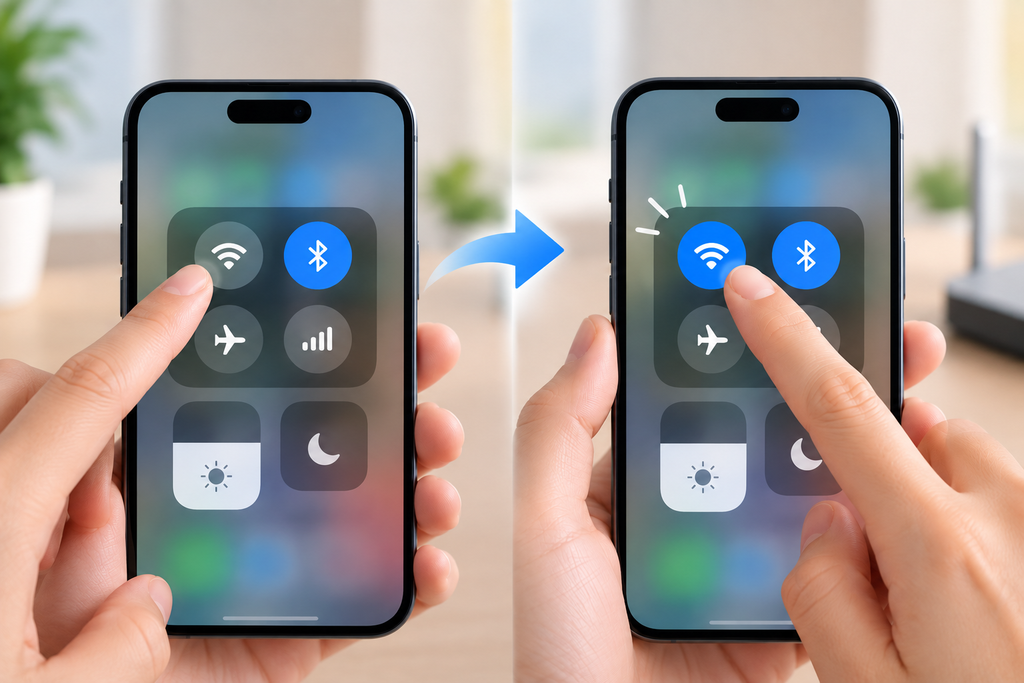
1. Turn Wi-Fi Off and Back On
Start with the simplest fix. Turn off Wi-Fi on your phone, wait a few seconds, and turn it back on.
You can also turn Airplane Mode on briefly and then switch it off to refresh your phone’s wireless connections.
2. Restart Your Phone and Router
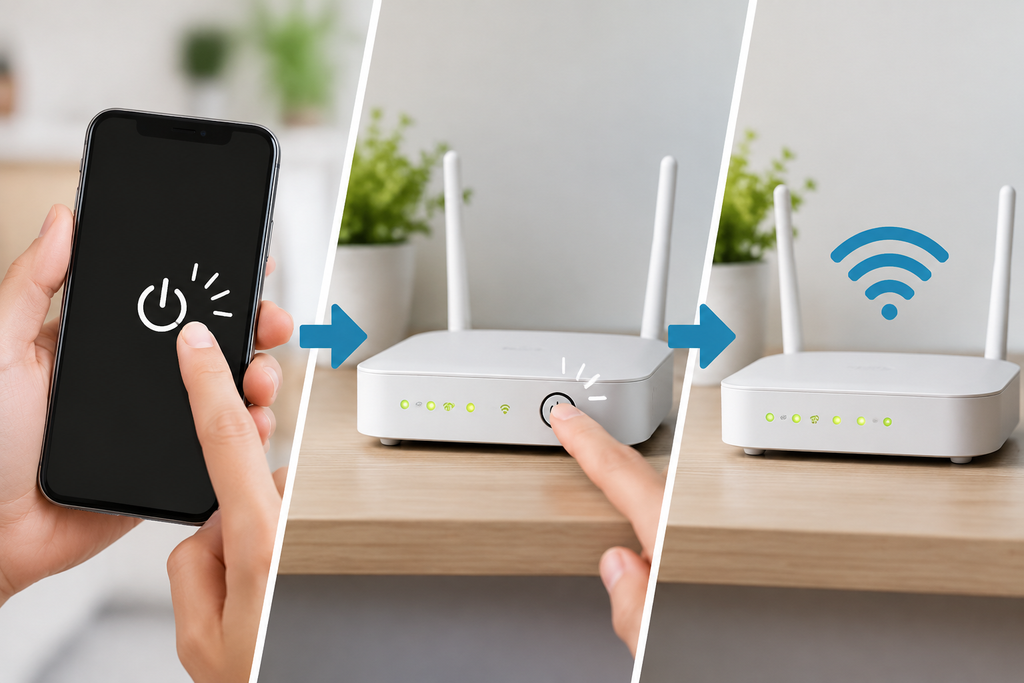
Temporary connection problems can sometimes be fixed with a restart.
Restart your phone first. If the problem continues, restart your Wi-Fi router and wait for it to reconnect before trying again.
3. Forget and Reconnect to the Network
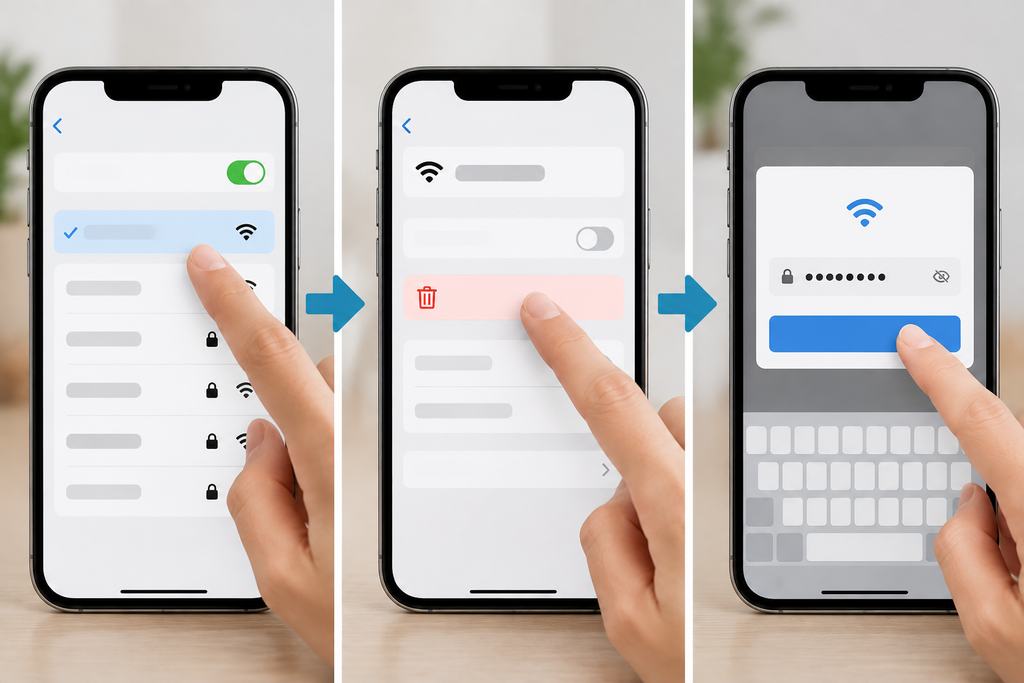
Open your Wi-Fi settings, select the network, and choose Forget Network.
Then reconnect and enter the Wi-Fi password again. Make sure the password is correct.
4. Check the Wi-Fi Signal
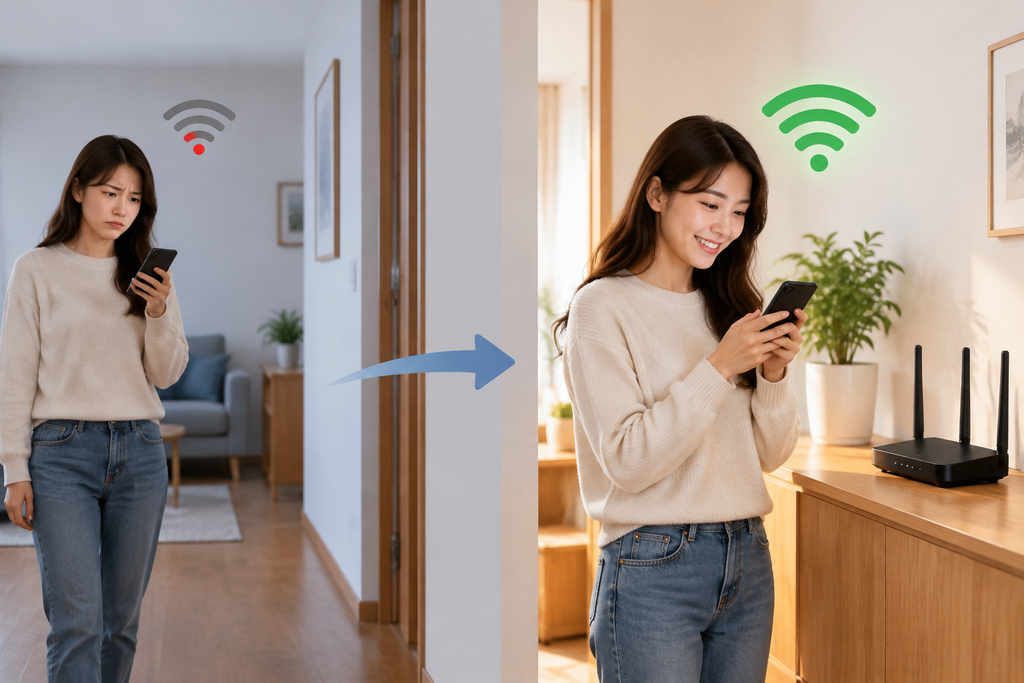
A weak signal can cause slow speeds or frequent disconnections.
Move closer to the router and check whether the connection improves. Walls and other obstacles may also affect Wi-Fi performance.
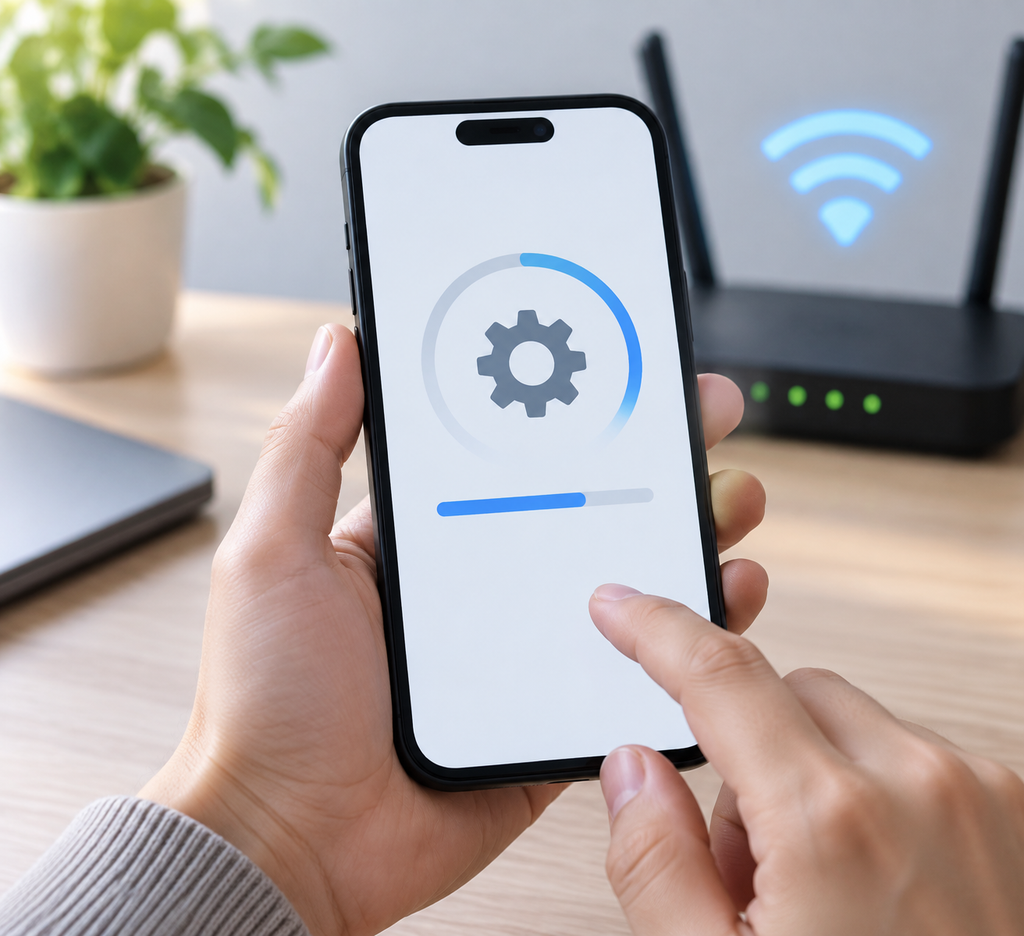
5. Check for Software Updates
Keeping your phone’s software up to date can help resolve bugs that affect Wi-Fi and other connections.
Check for available system updates and install them when appropriate.
Still Can’t Connect?
Try connecting another device to the same Wi-Fi network. If other devices also cannot connect, the problem may be with the router or internet service rather than your phone.
If your phone repeatedly fails to connect to different Wi-Fi networks, consider having the device checked for a possible hardware or software issue.